Verifying downloads with Powershell
NOTE: Date is probably wrong. Could remake this article and release in future.
It is good practice to perform an integrity check on any file you download, to provide reassurance that the file was downloaded correctly and is free from tampering. The VirtualBox executable is digitally signed, making manual verification unnecessary. You can see this by right-clicking the file, choosing Properties from the context menu, and then selecting the Digital Signatures tab.
Scroll down the VirtualBox Downloads page until you see the SHA256 checksums link (shown in figure 2) and click it.
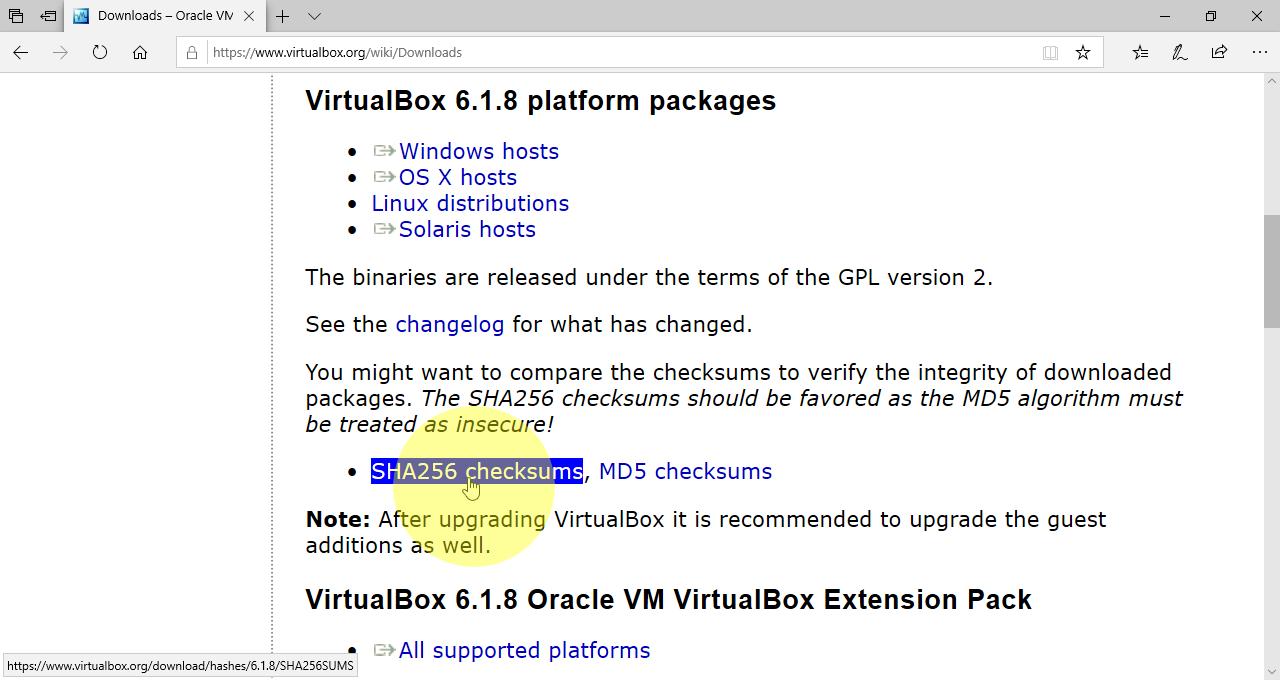
You’ll see a load of lines of text. These are SHA256 hashes, followed by the name of the file they were derived from. You want to find the line that matches the version you just downloaded. Perform a text search in your web browser by using the Ctrl+F key combination, and typing Win.exe into the search box. You should see Win.exe highlighted on the page, allowing you to identify the line you need. It will look something like the following text:
28f03359b9db46156628208dcb26572cf258d0803031a97c6533c49fff60dade *VirtualBox-6.1.8-137981-Win.exe
The first part of that line, the hexadecimal part, is a SHA256 hash. You will need to compare the hash you see on the web page with a hash that you generate yourself. To do that, open PowerShell, by pressing the Windows key on your keyboard and starting to type PowerShell. Click on Windows PowerShell in the start menu as shown in figure 3.
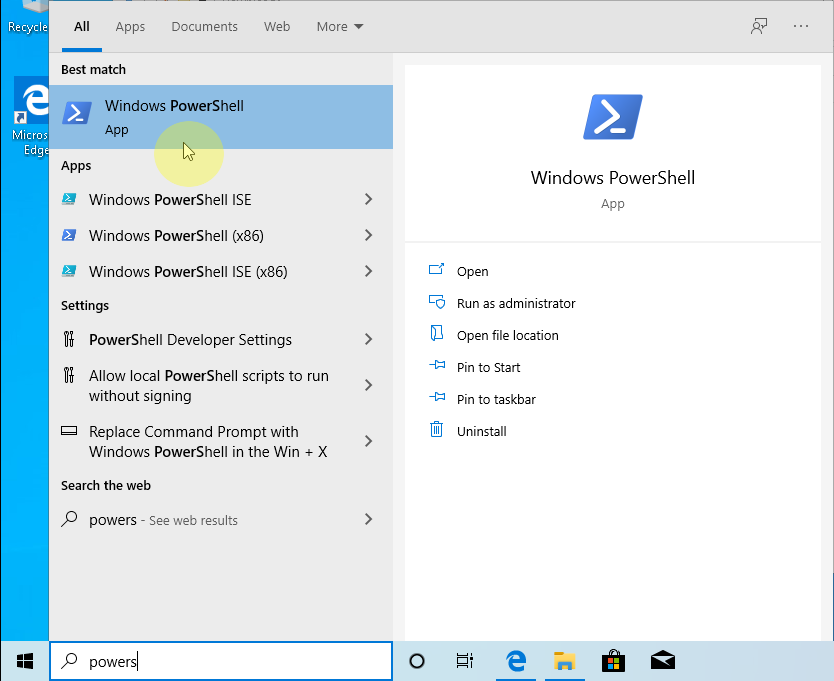
A PowerShell window will open displaying text similar to the following output. Instead of Jim, you’ll see your own username.
Windows PowerShell
Copyright (C) Microsoft Corporation. All rights reserved.

Try the new cross-platform PowerShell https://aka.ms/pscore6

PS C:\Users\Jim>
At the command prompt type (or copy and paste) the following command, replacing <UserName> with your username. Ensure that the filename of the VirtualBox .exe file also matches the file you downloaded.
Get-FileHash -Path 'C:\Users\<UserName>\Downloads\VirtualBox-6.1.8-137981-Win.exe' -Algorithm SHA256
The previous command, generates a checksum, also known as a file hash from the file you provided, and will output something similar to the following text.
Algorithm       Hash                                                                   Path
---------       ----                                                                   ----
SHA256          5800F8240D709B0AF2771F7F4EE492D82D36D6BEE367939B5E17AEAB849EBD50       C:\Users\Jim\Downloads\VirtualBox...
If the hash you have just generated matches the hash displayed when you followed the SHA256 checksums link, then the remote file, and the one you downloaded are identical.